

How to Contact Nexa Nurse Support Through the App
Nexa Nurse provides convenient ways for clients and healthcare professionals to contact Support directly through the app. You can access the Help Center from two different locations within the app and choose between Live Chat Support or Send Support Ticket.
How to Access the Help Center
There are two ways to access the Help Center through the Nexa Nurse App.
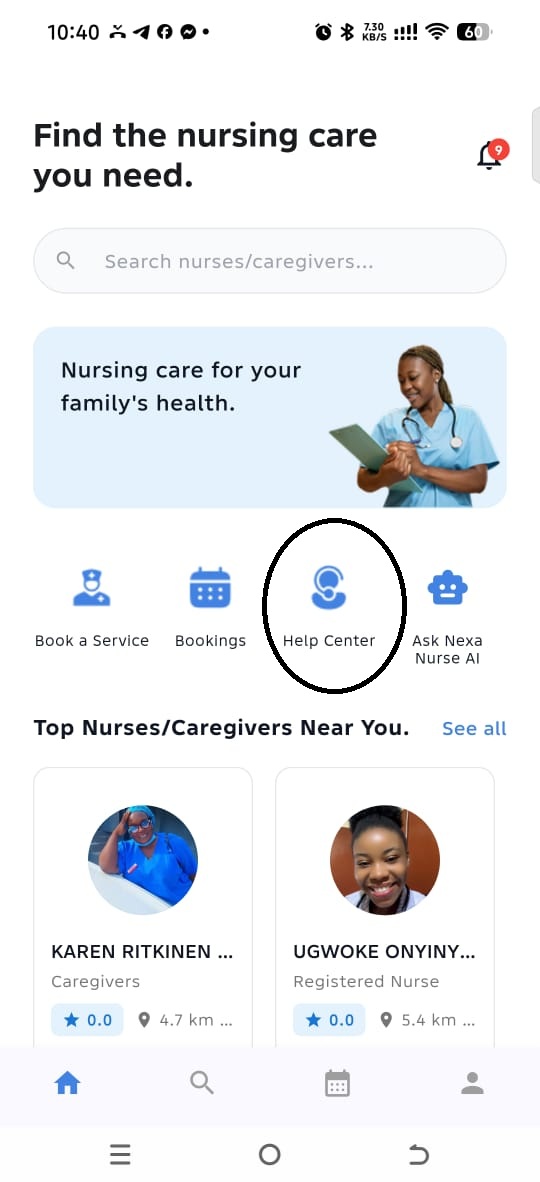
Option 1: From the Home Screen
- Open the Nexa Nurse App.
- On the Home Screen, locate and click Help Center.
- The Help Center will open, where you can choose how you want to contact Support.
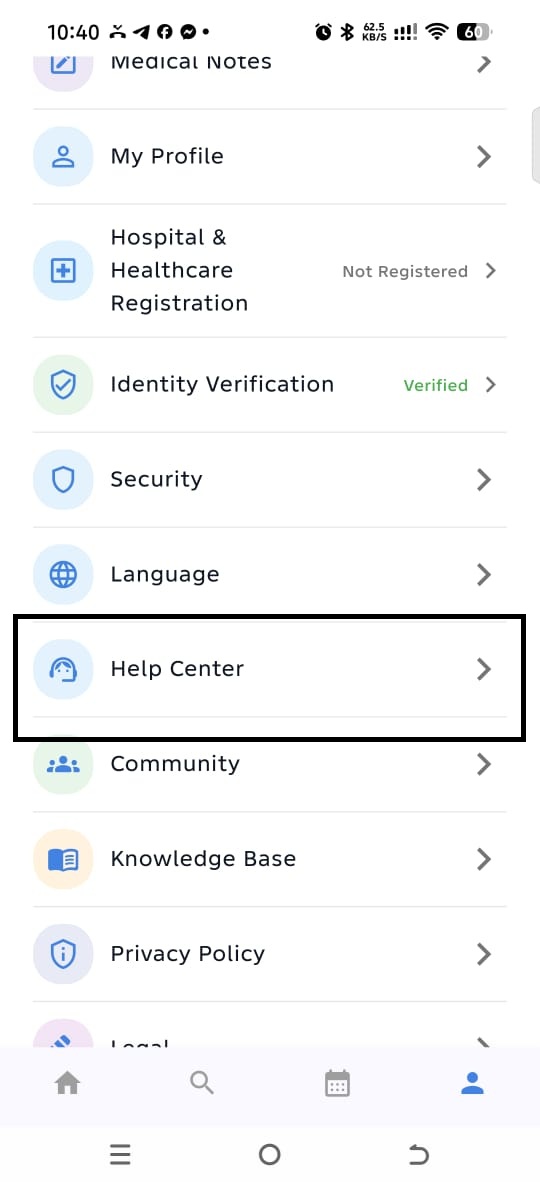
Option 2: From the User Menu
- Open the Nexa Nurse App.
- Open the User Menu.
- Click Help Center.
- The Help Center will open with the available support options.
Contacting Support Through the Help Center
Once you open the Help Center, you have two ways to contact Nexa Nurse Support:
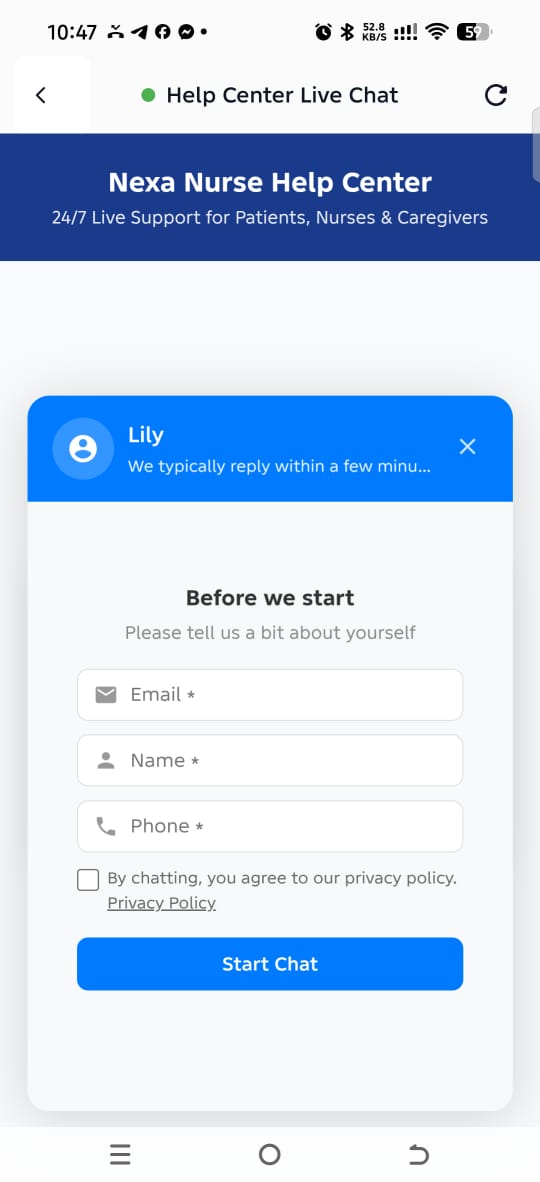
1. Live Chat Support
Live Chat Support allows you to communicate directly with a Support Agent through the app.
You can use Live Chat when you need assistance with an issue or have a question that requires support.
How Live Chat Works
- Open the Help Center.
- Select Live Chat Support.
- Start your conversation.
- A live Support Agent will attend to your request when an agent is available.
What if a Live Agent is Not Available?
If a live Support Agent is not currently available, an AI Support Agent can assist you.
The AI Agent can attend to your questions and provide assistance when a human Support Agent is unavailable.
2. Send Support Ticket
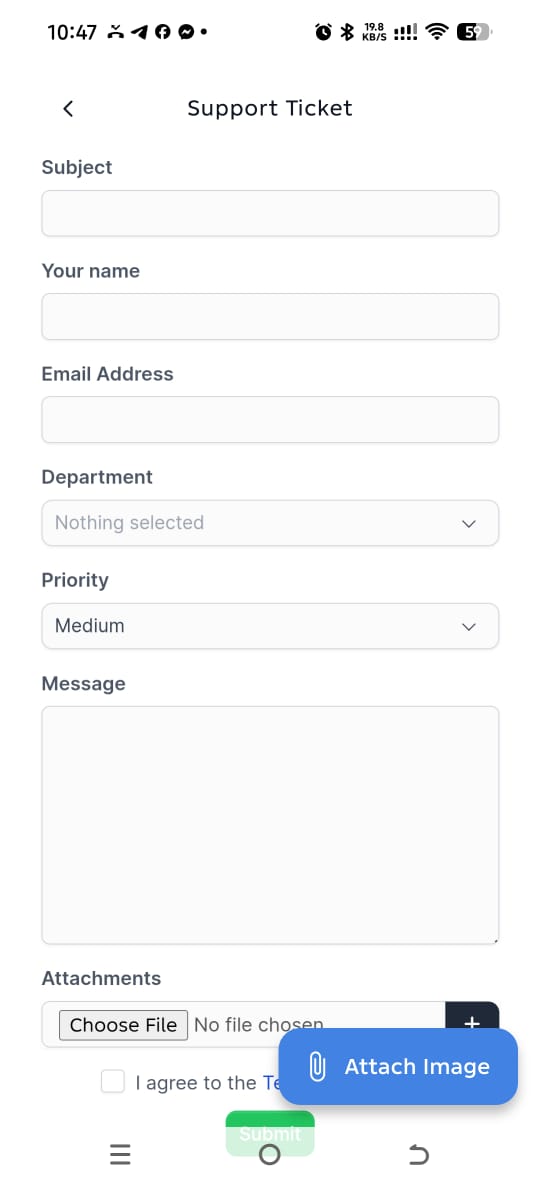
The Send Support Ticket option allows you to submit your issue or enquiry to the Nexa Nurse Support team.
This option is useful when your issue does not require immediate live conversation or when you prefer to submit your request for a Support Agent to review.
How to Send a Support Ticket
- Open the Help Center.
- Select Send Support Ticket.
- Complete the support form.
- Provide your:
- Name
- Email Address
- Message describing your issue or enquiry
- Appropriate Department
- Review the information you have provided.
- Submit the ticket.
How Will I Receive a Response?
Once a Support Agent reviews your ticket and responds, the response will be sent directly to the email address you provided.
You can also reply directly from your email to continue the conversation with the Support team.
Which Support Option Should I Use?
| Support Option | Best For |
|---|---|
| Live Chat Support | When you want to communicate with Support through the app |
| AI Support Agent | When a live Support Agent is unavailable |
| Send Support Ticket | When you want to submit a detailed issue or enquiry for Support to review |
Quick Guide
Need to speak with Support through the app?
→ Use Live Chat Support.
No live agent is available?
→ The AI Support Agent can assist you.
Want to submit a detailed issue and receive a response by email?
→ Use Send Support Ticket.
Important
When submitting a support request, provide as much relevant information as possible. For booking-related issues, include your booking details where applicable. This helps the Support team understand your issue and provide the appropriate assistance.