

Creating an Account as a Patient
This guide explains how Registered Nurses and Caregivers can create an account, complete their professional profile, submit their information for verification, and become available to provide care through Nexa Nurse.
1. Open the Nexa Nurse App
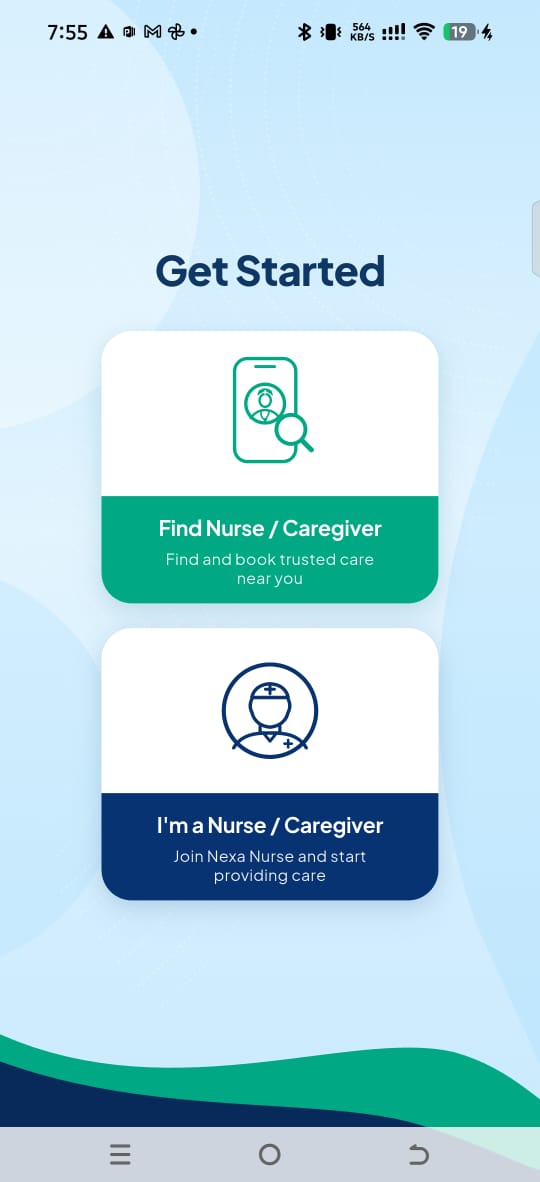
When you open the Nexa Nurse App for the first time, you will see two options:
- Find Nurse/Caregiver – Find and book trusted care near you.
- I’m a Nurse/Caregiver – Join Nexa Nurse and start providing care.
To register as a health professional, select: Find Nurse/Caregiver – Find and book trusted care near you.
2. Read the Introduction Pages
You will be taken through a few information pages explaining Nexa Nurse and how the platform works.
You can either:
- Click Continue to read through the information, or
- Click Skip to proceed.
We recommend reading the information as it contains important details about providing care through Nexa Nurse.
3. Registration or Login
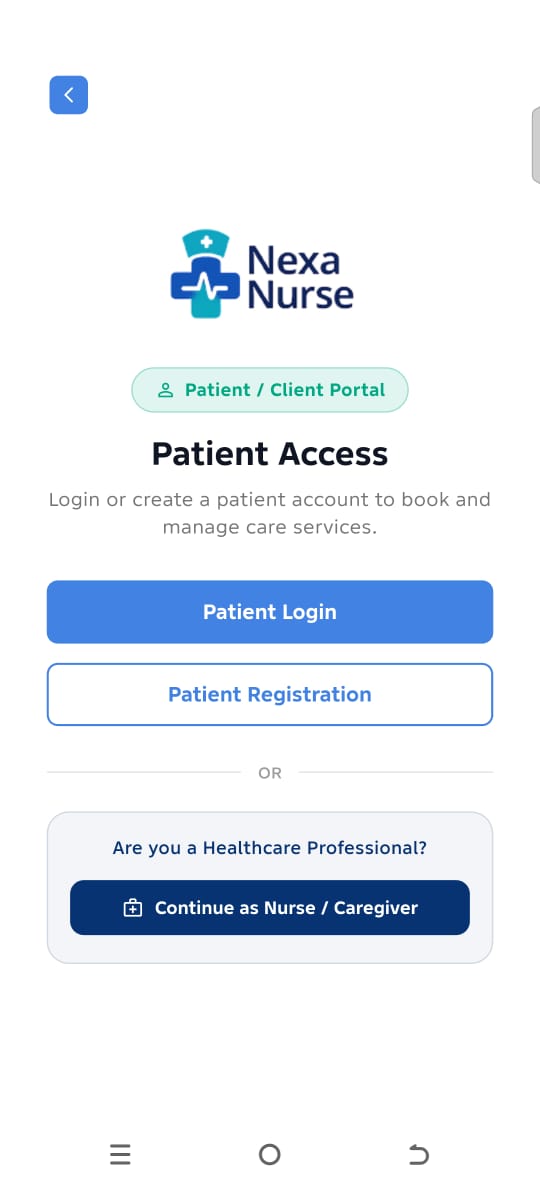
You will then be taken to the Patient Registration/Login page.
If you already have a Nexa Nurse patient account, select: Patient Login
If you are registering for the first time, select: Patient Registration
4. Complete Your Initial Registration
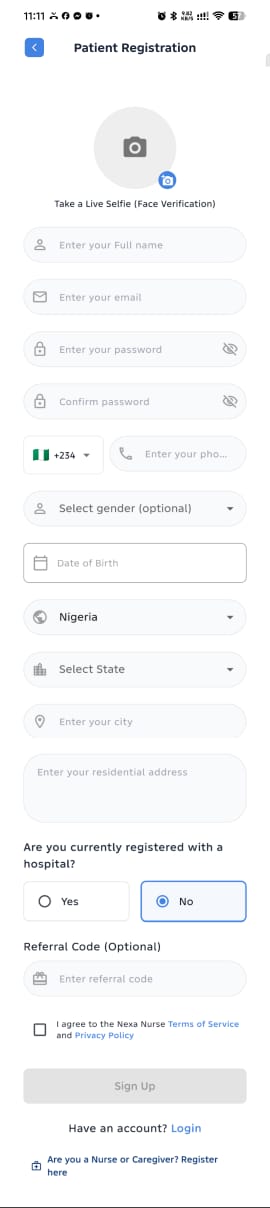
Complete the following information:
Personal and Account Information
- Take a Selfie – Take a clear selfie as required by the app.
- Email Address – Enter an active email address that you can access.
- Password – Create your preferred password and confirm it.
- Phone Number – Enter your Phone Number
- Gender – Select your Gender
- Date of Birth – Enter your Date of Birth
- Address: Enter Your Residential Address
- Hospital : If you are registered to a hospital, check the box and provide the hospital details.
- Affiliate Code – If you have an affiliate code, enter it in the appropriate field.
- Terms of Service & Privacy Policy – Read and accept the Terms of Service and Privacy Policy by checking the box.
Click Sign Up to continue.
5. Verify Your Email Address
After clicking Sign Up, an OTP verification window will appear.
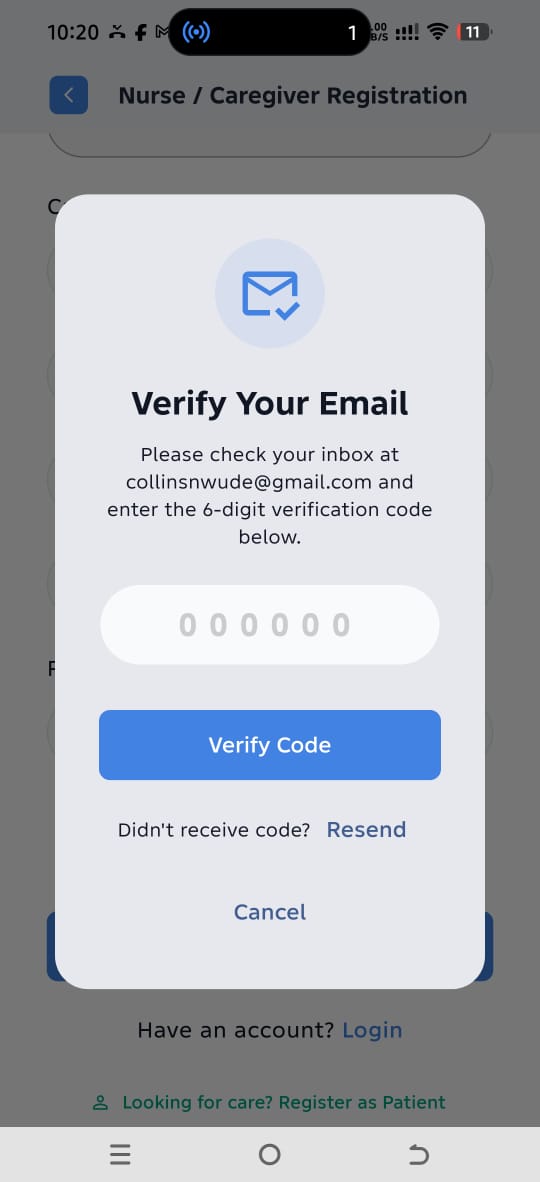
Check your registered email address for the OTP sent by Nexa Nurse.
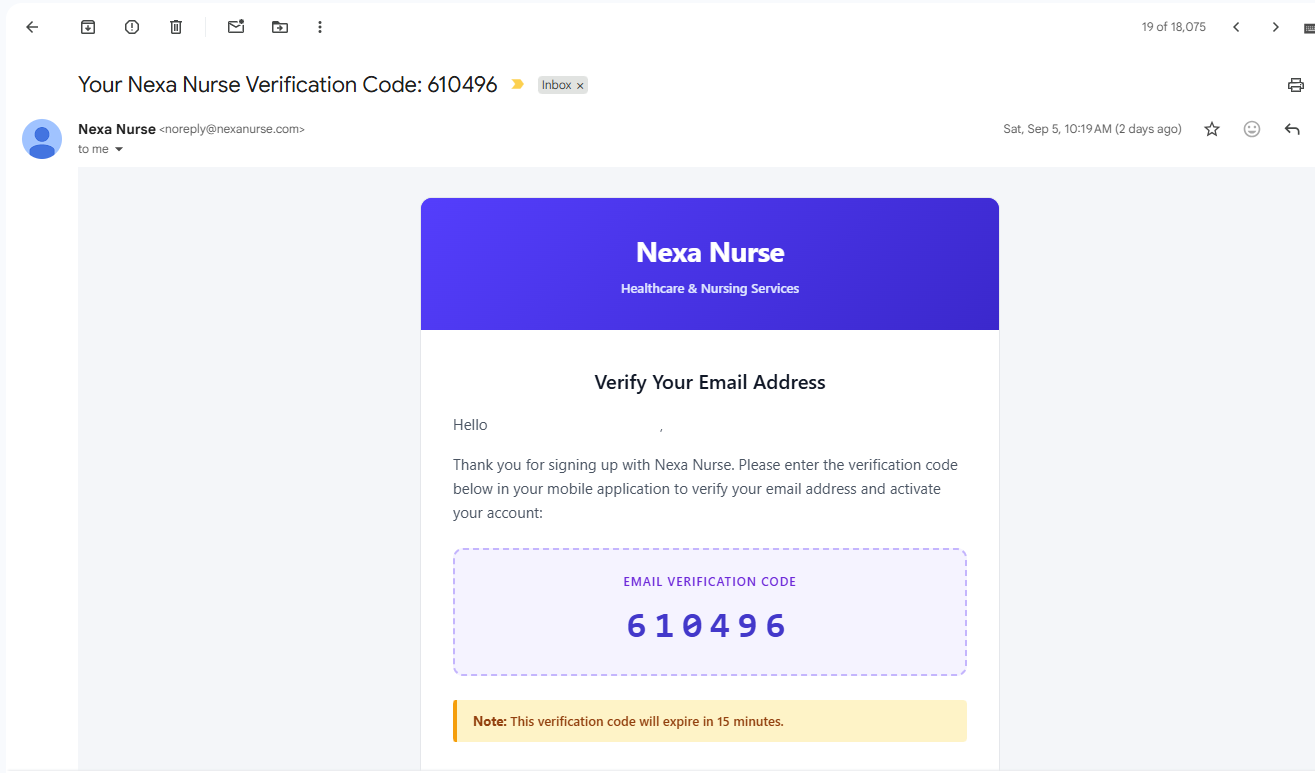
Enter the OTP in the app to verify your email address.
Important
You must complete email verification before proceeding.
6. Log In to Continue
Once your email address has been successfully verified, you will receive a confirmation email.
Log in to the Nexa Nurse App using the email address and password you provided during registration.
You will then be prompted to provide your NIN and Proof of Address to complete your identity verification and obtain the Verification Badge on your profile.
The Verification Badge helps build trust with other users and increases confidence when they are considering your profile for bookings.
Important: Once your profile has been verified and locked, you will no longer be able to edit your profile information directly through the app.
If you need to make any changes after your profile has been locked, you must contact Nexa Nurse Support for assistance.